
How to Run an AI Companion on Your Own Computer
Run a local AI companion with KoboldCpp. Follow model download and setup steps, add character cards, and explore optional SillyTavern.

Run a private local AI companion without a required subscription on the computer you already own, provided its hardware supports your chosen model. Hardware, storage, and electricity still cost money, but local chat doesn’t require a hosted service or an API bill. To start your first conversation, you’ll need KoboldCpp and a separately downloaded model.
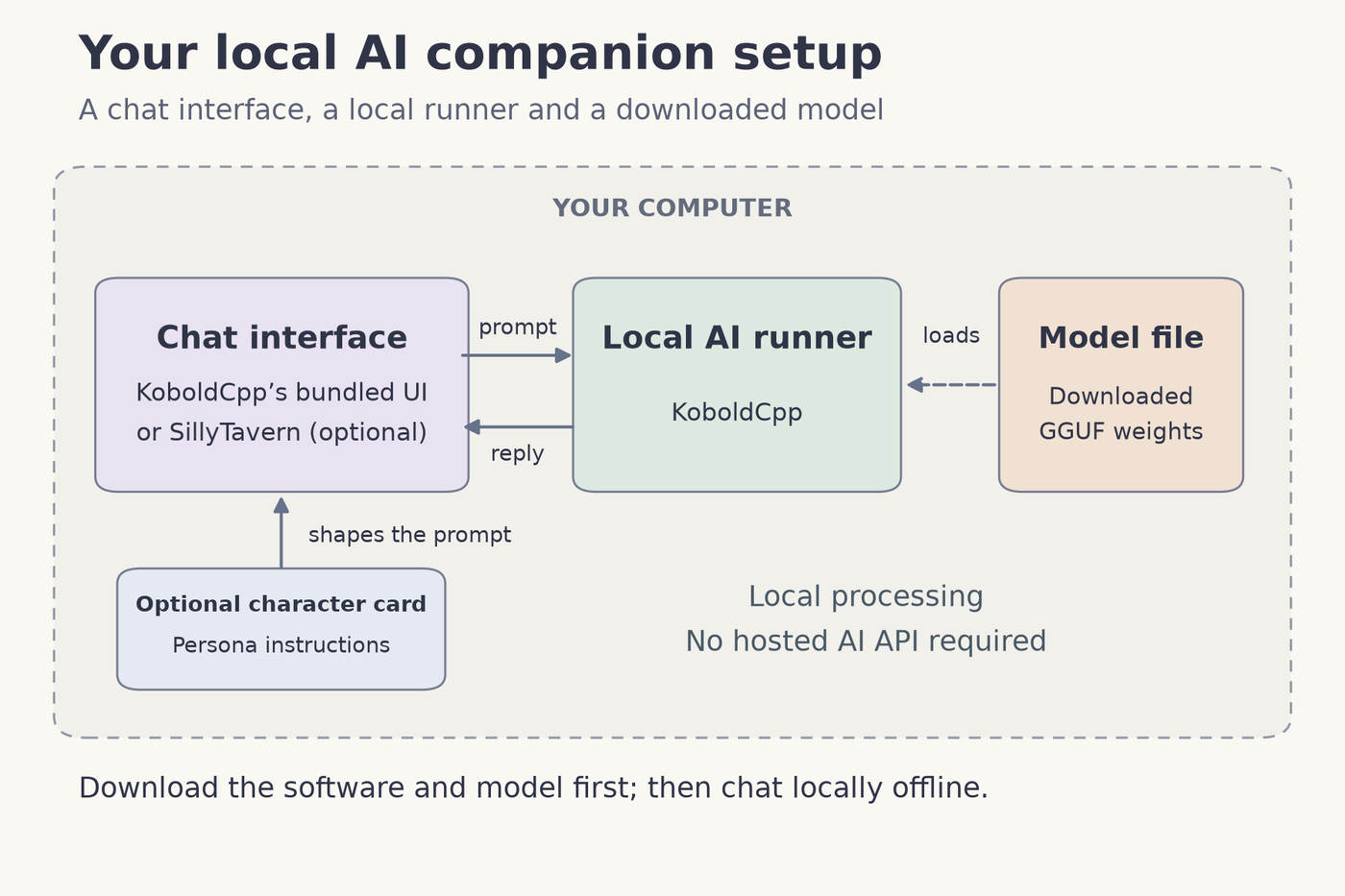
Your back-end loads and runs the language-model weights, the data that shapes how the model generates responses. Your front-end gives you a place to type and read replies. KoboldCpp includes the KoboldAI Lite browser interface, so SillyTavern is optional.
The GGUF file you download contains the model weights. A character card contains persona prompts and behavior instructions that shape your companion’s responses. Changing the character doesn’t require downloading another large model.
A browser can display software running on your own computer. When you open KoboldCpp at http://localhost:5001, the localhost address points back to that computer. Using a browser doesn’t by itself mean your conversation goes through a cloud service.
Check your memory and storage for local AI
Before you download a model, check your computer’s RAM and available disk space. Your local AI hardware requirements depend on the model and how much conversation it keeps in context, the text available to it when generating a reply.
The KoboldCpp wiki gives the following GGUF memory requirements for context 2048 and Q4_0 quantization. B means billions of parameters. Quantization stores model weights at reduced precision to make them smaller.
| Model size | Minimum system RAM |
|---|---|
| 3B | At least 4GB RAM |
| 7B | At least 8GB RAM |
| 13B | At least 16GB RAM |
| 30B | At least 32GB RAM |
| 65B | At least 64GB RAM |
These are conditional minimum estimates. They don’t guarantee fast replies or enough free memory for every operating system and context setting. Q4_0 is the table’s assumption, not a required download variant for every model.
Check each kind of memory and storage separately:
- System RAM holds data while your computer runs software, including the model. Your operating system and other open apps need some of it too.
- GPU VRAM is memory on your graphics card. It’s separate from system RAM, so the two figures aren’t interchangeable.
- Disk storage holds your downloaded files. SillyTavern’s documentation says model files can be 5 - 50GB each. That storage space is separate from the working memory needed to run them.
KoboldCpp runs on your CPU without a dedicated GPU. Larger models and longer context need more memory, so start with a smaller compatible model.
Get KoboldCpp and find a compatible GGUF model
Visit the official KoboldCpp download page. KoboldCpp is free and open source, supports GGUF models, and provides ready-to-run executables without a conventional installation. You’ll download the model file separately.
Choose the executable for your operating system and hardware. Use the project’s build guidance to select from these options:
- For Windows, choose
koboldcpp.exe,koboldcpp-nocuda.exefor CPU/Vulkan without CUDA, orkoboldcpp-oldpc.exeif you encounter compatibility issues. - For Linux x86-64, choose
koboldcpp-linux-x64or the corresponding alternative described by the project for your hardware. - For Apple Silicon Macs, choose
koboldcpp-mac-arm64. - For Intel Macs, follow the project’s instructions for compiling from source. The Apple Silicon executable isn’t the Intel Mac build.
- For Windows, choose
Follow KoboldCpp’s Where to get GGUF models guide to find a compatible model. Most are hosted on Hugging Face. Choose a small compatible chat/instruct or roleplay model with a clear model card, the page describing the model. Read its hardware requirements, file format, intended use, and license to check that it suits your computer and the conversations you want.
On your chosen model’s file page, download the desired quantized
.gguffile that fits your available memory, rather than the entire repository, as the model guide explains. A model may offer several quantized variants, so check its documentation to choose the appropriate file. You don’t need Q4_0 just because it appears in the earlier memory table.
Start KoboldCpp and send your first message
- Launch the executable you downloaded. Follow the instructions for your operating system in the official project guide:
- On Windows, double-click your chosen executable, such as
koboldcpp.exe. - On Linux x86-64, run
chmod +x koboldcpp-linux-x64, then./koboldcpp-linux-x64from the folder containing the file. - On Apple Silicon, run
chmod +x koboldcpp-mac-arm64, then./koboldcpp-mac-arm64from the folder containing the file. If macOS blocks it, use your Mac’s Privacy & Security settings to allow it to open.
- On Windows, double-click your chosen executable, such as
- Under GGUF Text Model, select the
.gguffile you downloaded. - Choose hardware settings appropriate to your computer. Follow the KoboldCpp setup guidance for your chosen build and hardware.
- Click Launch.
- Wait for the model and local server to finish loading. Keep KoboldCpp open throughout your conversation.
- Open
http://localhost:5001in your browser to reach the bundled chat interface. - Send a short greeting, such as “Hello! Can you help me plan a relaxing evening?” Wait for generated text to appear. Seeing the interface confirms that the page opened. Receiving a response confirms that the model is generating replies.
If you don’t get that first response, work through these troubleshooting checks:
- Confirm that you selected a GGUF model file. If your download uses split GGUF files, keep all parts together and select the first part, as explained in the model guide.
- Check that your executable matches your operating system and hardware. The official release guidance explains the available builds.
- If the browser page doesn’t open, check that the server has finished starting and that KoboldCpp is still running. Then try
http://localhost:5001again. - If loading fails because of memory, try a smaller model, a shorter context, or a smaller processing batch. Reducing GPU layers can increase system RAM use, so it won’t fix every memory error. Follow the project’s hardware and memory guidance when adjusting these settings.
Give your companion a personality with character cards
Character cards let you shape your companion’s style by choosing an existing character or creating a simple persona of your own. For a welcoming companion, you might describe a patient personality, a short backstory, and a preference for relaxed conversation with one question at a time.

To import a Tavern character into KoboldCpp, use the bundled interface’s card-import feature to load a local Tavern card file. Then select that character for your conversation. The KoboldCpp project supports Tavern-card imports, so you don’t need to add SillyTavern for this.
If you later choose SillyTavern, NAME is the only required character field. A name alone gives the model little direction, though. Adding personality, backstory, and conversation preferences helps guide its replies, as described in the SillyTavern documentation.
You have two import options in SillyTavern:
- Import a local file, including a PNG character card with its definitions embedded. A file you’ve already downloaded doesn’t need an internet fetch.
- Import a card from a URL, which requires internet access to fetch the card.
Connect SillyTavern to KoboldCpp if you want more options
Add SillyTavern if you’d like a separate character-chat interface for KoboldCpp. It’s locally installed, always free and open source, and requires Node.js plus an LLM back-end. Its documentation supports NodeJS 20 or newer. The recommended 3000-series NVIDIA GPU with at least 6GB VRAM is for local inference, rather than running the interface itself. See the official documentation for these requirements and the Linux/macOS installation guidance. Steps 2 - 5 below cover Windows.
Install Node.js LTS, following the Windows installation guide. The guide covers the next three installation actions too.
Install Git for Windows.
Use Git to clone SillyTavern’s release branch, following the guide’s instructions. Choose release for this setup. Staging changes frequently and can break.
Open the downloaded SillyTavern folder and run
Start.batto install its dependencies and launch the interface.Keep KoboldCpp running with your model loaded on the same computer. In SillyTavern’s connection panel, enter these settings:
- API = Text Completion
- API Type = KoboldCpp
- Server URL =
http://127.0.0.1:5001/ - If your KoboldCpp server has a password, enter it as the API key.
These settings follow the SillyTavern self-hosted connection guide and KoboldCpp app connection instructions.
Click Connect to connect SillyTavern to your running KoboldCpp server.
Select your character and send a short greeting. Wait for generated text to appear. A connected status confirms the link to the server, while an actual reply confirms that your model is responding through SillyTavern.
If you don’t get a reply, check the relevant part of the connection:
- If the connection fails, confirm that API is Text Completion, API Type is KoboldCpp, and the server URL is
http://127.0.0.1:5001/. - Check the API key if your KoboldCpp server requires a password.
- Confirm that KoboldCpp is still running on the same computer as SillyTavern.
- If SillyTavern connects but produces no response, check KoboldCpp to confirm that the model loaded successfully.
- If the connection fails, confirm that API is Text Completion, API Type is KoboldCpp, and the server URL is
Understand offline privacy and access from your phone
After downloading the software, model files, and any character cards you want, you’re ready to use offline AI chat. KoboldCpp says it can run fully locally without internet and doesn’t send your inputs elsewhere. That statement applies to your local setup.

SillyTavern’s documentation says self-hosted models keep everything you write on your own PC, and local APIs are free to use with no content filter. This describes the self-hosted connection. Your chosen model may still refuse some requests. Optional extensions don’t necessarily work offline, and cloud APIs or online features send data through a different path.
For mobile access, open your computer’s SillyTavern instance in a mobile browser. Your iPhone or iPad can’t run SillyTavern itself, but it can access the host computer on the same home Wi-Fi. Keep that computer on and SillyTavern running.
To enable this optional home-network access, follow the official remote-connections guide:
- Set
listen: truein SillyTavern’s rootconfig.yamlfile. - Configure at least one access-control method described in the guide before connecting another device.
- On your phone or tablet, open the hosted interface using the host computer’s LAN address, its address on your home network, following the guide’s connection instructions.
On your phone, localhost and 127.0.0.1 point to the phone itself, so use your computer’s LAN address instead. When you chat this way, your messages travel across your home network between the mobile browser and the host computer.
Explore Ollama and LM Studio as alternatives
Ollama and LM Studio offer alternative ways to chat locally if either better suits your needs. You don’t need to install them alongside your working KoboldCpp setup.
| Tool | Role and platforms | Licensing and cost | Memory recommendation |
|---|---|---|---|
| Ollama | Back-end for macOS, Windows, and Linux | MIT licensed, with unlimited model use on your own hardware. See Ollama and its repository. | Check your chosen model’s requirements. |
| LM Studio | Chat app and local server for macOS, Windows, and Linux | Free for home and work use, but not open source. Its current terms also describe paid features, so free use doesn’t mean every feature is free. See LM Studio. | At least 16GB RAM recommended in its system requirements. |
When running local models with Ollama, you use it as the back-end rather than as a dedicated character-chat interface. Ollama states that it doesn’t collect, store, transmit, or access content you process locally. That statement covers local processing. Choosing one of its cloud models sends your requests outside your computer.
LM Studio gives you a built-in place to chat with a local model, while its local server lets you connect other interfaces. Under LM Studio’s privacy policy, your local-model messages, chat histories, and documents remain on your device. Optional cloud models and web search transmit requests for processing. Model searches, downloads, and update checks also involve network activity.
Refine your local AI companion once chat works
Once you receive a generated reply, save the setup that worked. Before you customize your local AI companion further, give yourself a way to return to that starting point.
- Save your working setup by noting the model file and settings that produced a reply, and keeping a copy of your current character instructions.
- Change one aspect, such as asking your companion to give shorter answers. Leave context and other optional settings alone while you assess that change.
- Compare the response using a familiar greeting or conversation prompt. Decide whether the change brings the conversation closer to the style you want before adjusting anything else.
With a local runner and local model, you avoid a required hosted subscription or API bill. Your hardware, storage, and electricity still have costs, so aim for a setup that fits both your computer and your budget.
Our guide focuses on helping you choose a setup you can actually use. Now that local chat works, refine your companion’s persona with one clear instruction about how you’d like it to respond.
Frequently asked questions
Do you need a dedicated graphics card?
KoboldCpp supports CPU operation, so a dedicated GPU isn't required. Your computer still needs enough memory for the chosen model and context length. Start with a compatible smaller model if a larger one exceeds the available memory.
Do you need SillyTavern to start chatting?
KoboldCpp includes the KoboldAI Lite browser interface, which is enough to start a conversation. SillyTavern is an optional front end for additional character and chat controls. It still needs a connected back end to generate replies.
Is a character card the same as a language model?
The model file contains the weights used to generate responses. A character card supplies persona prompts and behavior instructions. Changing cards lets you change the companion without downloading a different model each time.
Does using a browser send the conversation to the cloud?
A browser may display an interface running on your own computer. The localhost address in this guide points to that computer. Check any optional online services or extensions separately before treating the whole setup as offline.